> ## Documentation Index
> Fetch the complete documentation index at: https://openmetadata-fix-mcp-oauth-security-docs.mintlify.site/llms.txt
> Use this file to discover all available pages before exploring further.
# Database service setup
> Configure a database service connection in OpenMetadata and prepare it for metadata ingestion.
# Setting Up a Database Service for Metadata Extraction
You can quickly set up a database service for metadata extraction in OpenMetadata SaaS. Below is an example of how to configure a connection using the `Snowflake` Connector:
1. ## Log in to OpenMetadata SaaS
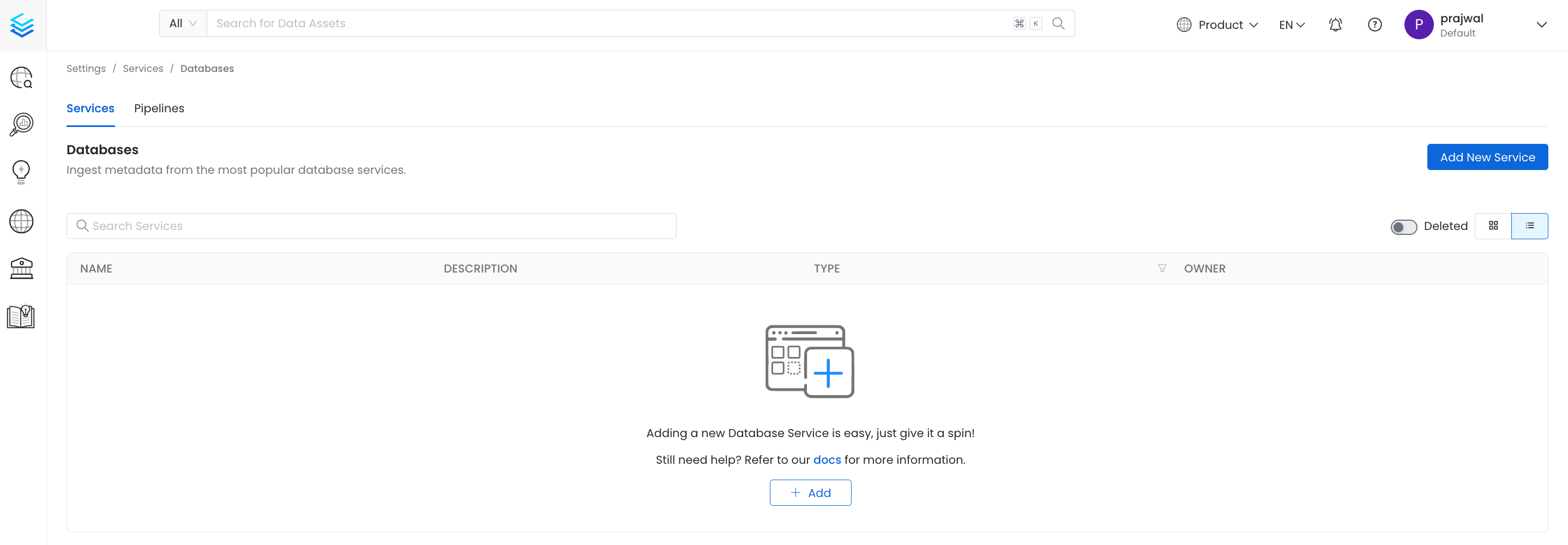
* Navigate to **Settings > Services > Databases**.
* Click on **Add New Service**.
 2. ## Select Database Type
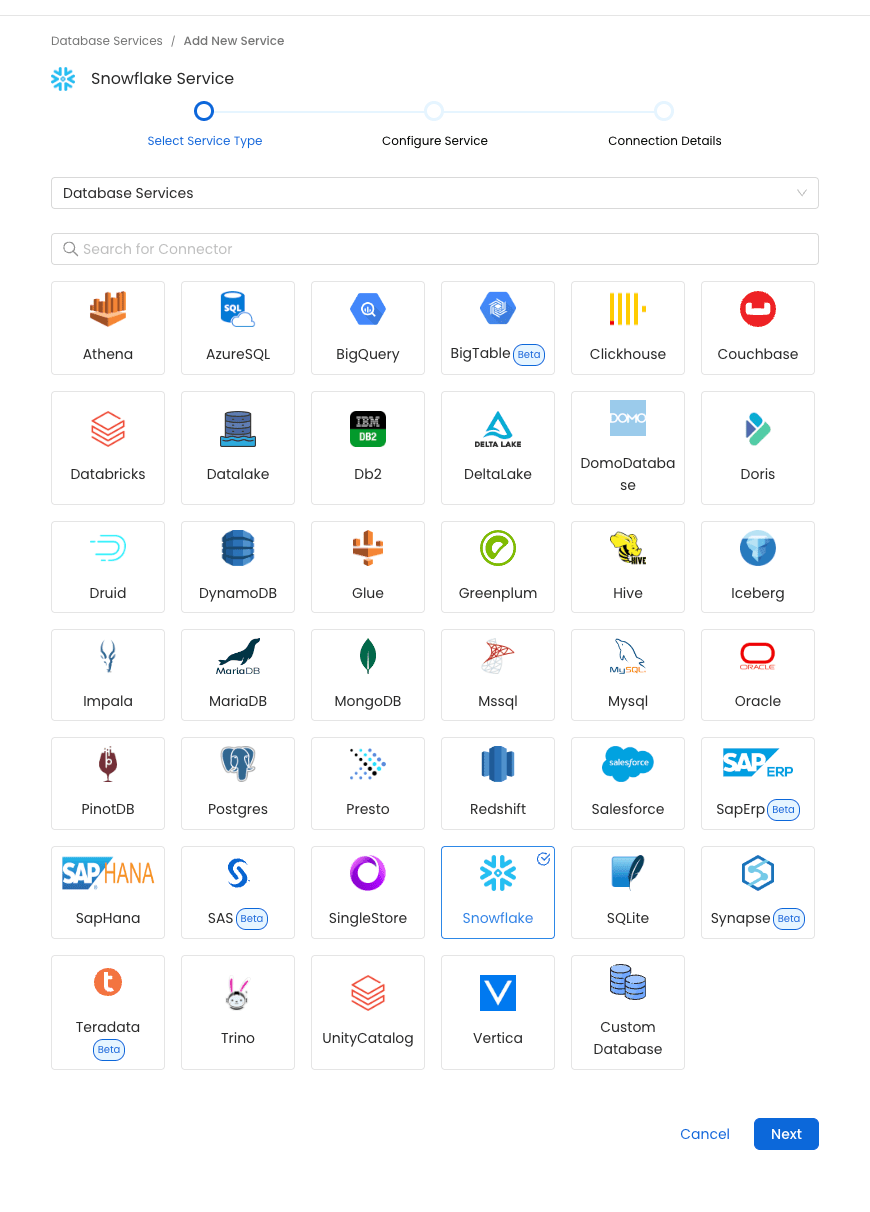
* Choose the database type for your service. In this example, select `Snowflake`.
* Enter the required details, such as the **Name** and **Description**, to identify the database.
2. ## Select Database Type
* Choose the database type for your service. In this example, select `Snowflake`.
* Enter the required details, such as the **Name** and **Description**, to identify the database.
 3. ## Enter Connection Details
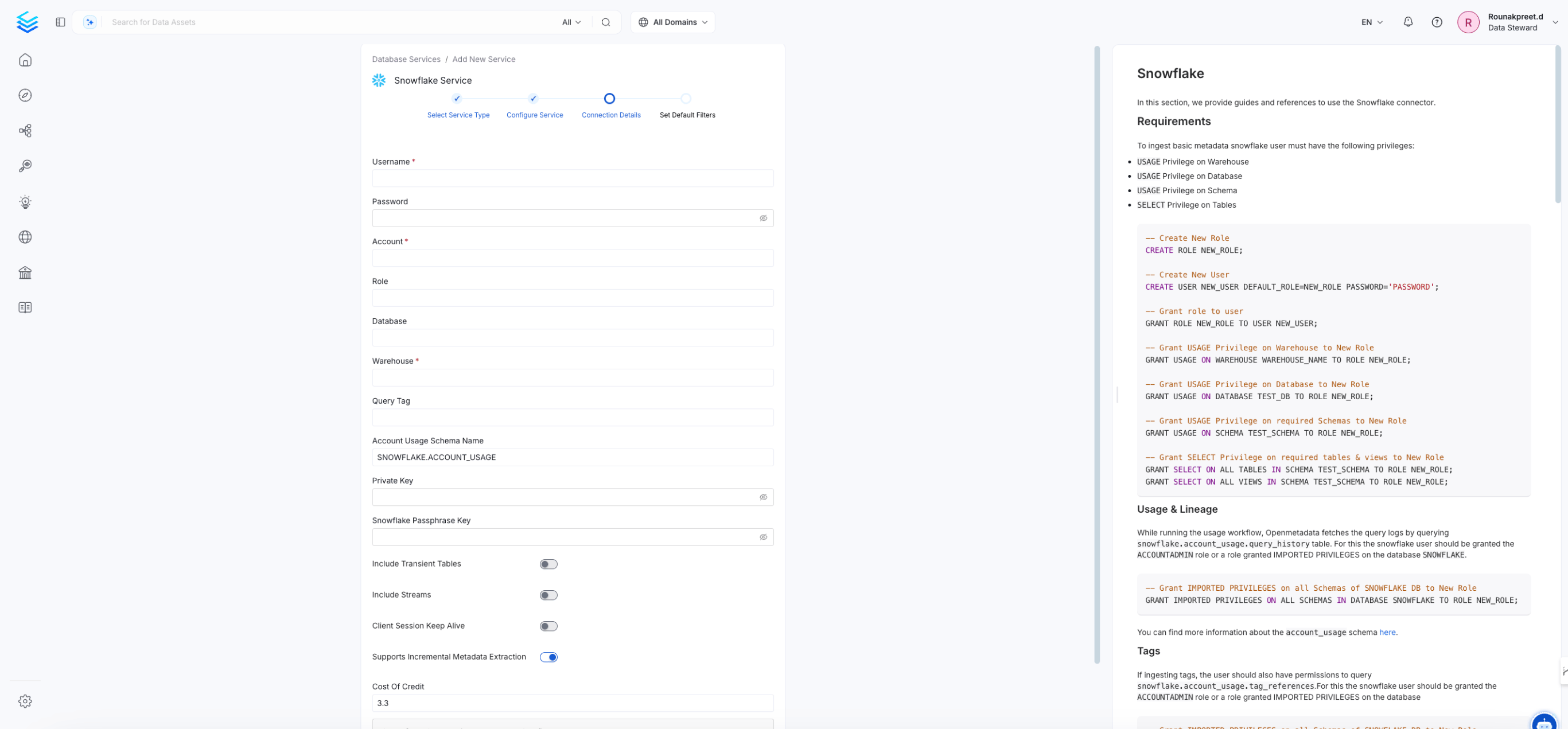
* Provide the necessary connection parameters, such as hostname, port, credentials, etc.
* The side panel offers guidance with available documentation, and you can also refer to the specific `Snowflake` Connector [documentation](/v1.12.x/connectors)for more information.
3. ## Enter Connection Details
* Provide the necessary connection parameters, such as hostname, port, credentials, etc.
* The side panel offers guidance with available documentation, and you can also refer to the specific `Snowflake` Connector [documentation](/v1.12.x/connectors)for more information.
 4. ## Test the Connection
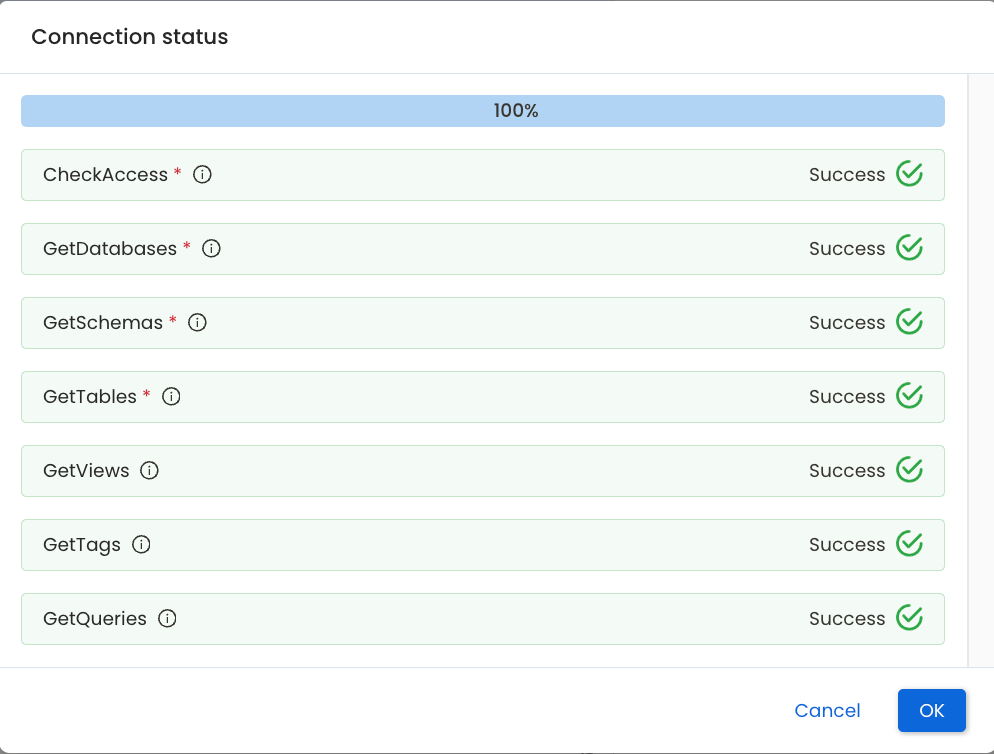
Click Test Connection to verify the setup. This will check if OpenMetadata can reach the Snowflake service.
4. ## Test the Connection
Click Test Connection to verify the setup. This will check if OpenMetadata can reach the Snowflake service.
 5. ## Set Default Data Filters
Configure default filters to control which databases, schemas, and tables are included or excluded during ingestion.
#### Default Database Filter Pattern
* **Includes / Excludes**:\
To add a filter pattern, simply type it in and press `Enter`.
#### Default Schema Filter Pattern
* **Includes / Excludes**:\
To add a filter pattern, simply type it in and press `Enter`.
#### Default Table Filter Pattern
* **Includes / Excludes**:\
To add a filter pattern, simply type it in and press `Enter`.
These filters help streamline the ingestion process by targeting only the relevant data assets.
5. ## Set Default Data Filters
Configure default filters to control which databases, schemas, and tables are included or excluded during ingestion.
#### Default Database Filter Pattern
* **Includes / Excludes**:\
To add a filter pattern, simply type it in and press `Enter`.
#### Default Schema Filter Pattern
* **Includes / Excludes**:\
To add a filter pattern, simply type it in and press `Enter`.
#### Default Table Filter Pattern
* **Includes / Excludes**:\
To add a filter pattern, simply type it in and press `Enter`.
These filters help streamline the ingestion process by targeting only the relevant data assets.